How to Merge Audio Files with Movavi’s Audio Joiner

  1. Download and install Movavi Video Editor.

  2. Import your files and place them on the timeline in the desired order.

  3. Export the result.

By clicking the download button, you're downloading a free version of the program.*

Meet the audio joiner by Movavi

Easy audio editing

Adjust volume and speed, add Fade in/Fade out, reverberation, and other effects.

AI features

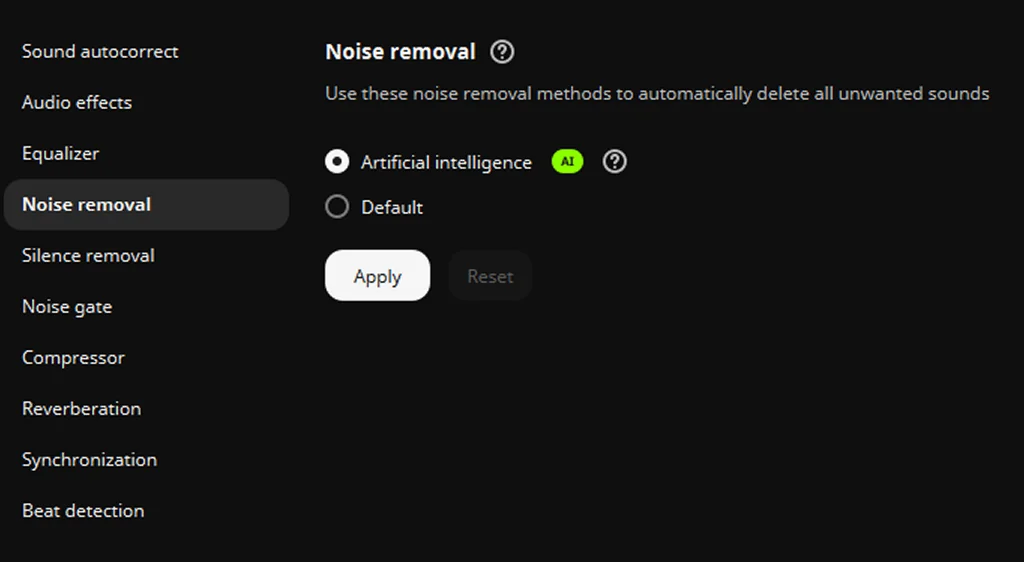
Enhance your audio using one-click AI tools, like noise and silence removal.

Support for popular audio formats

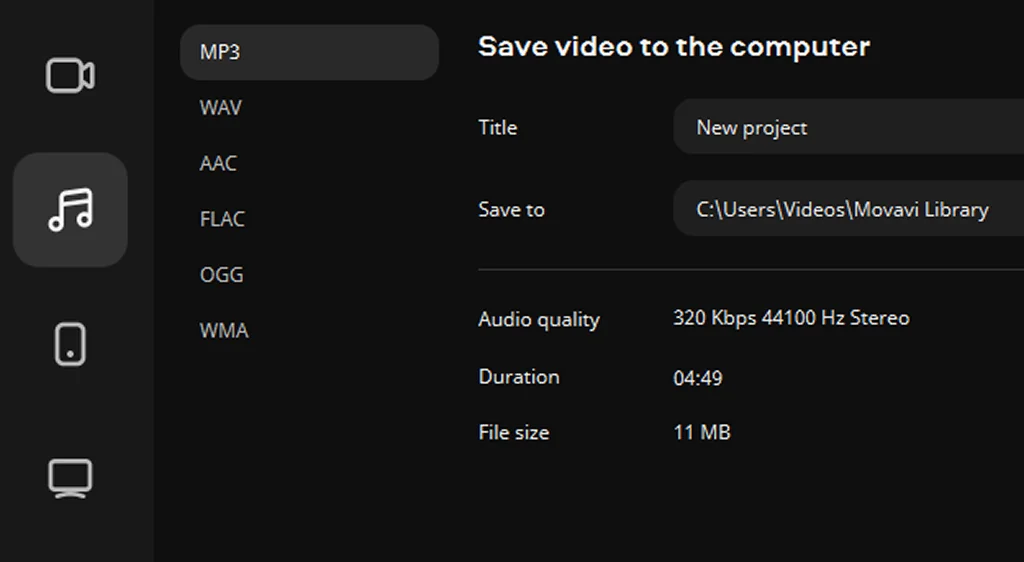
Export your audio in the desired format – MP3, WAV, AAC, FLAC, OGG, or WMA.

Combine audio files with Movavi Video Editor

Looking for an audio merger that will help you quickly combine audio files? Movavi is the go-to app for that!

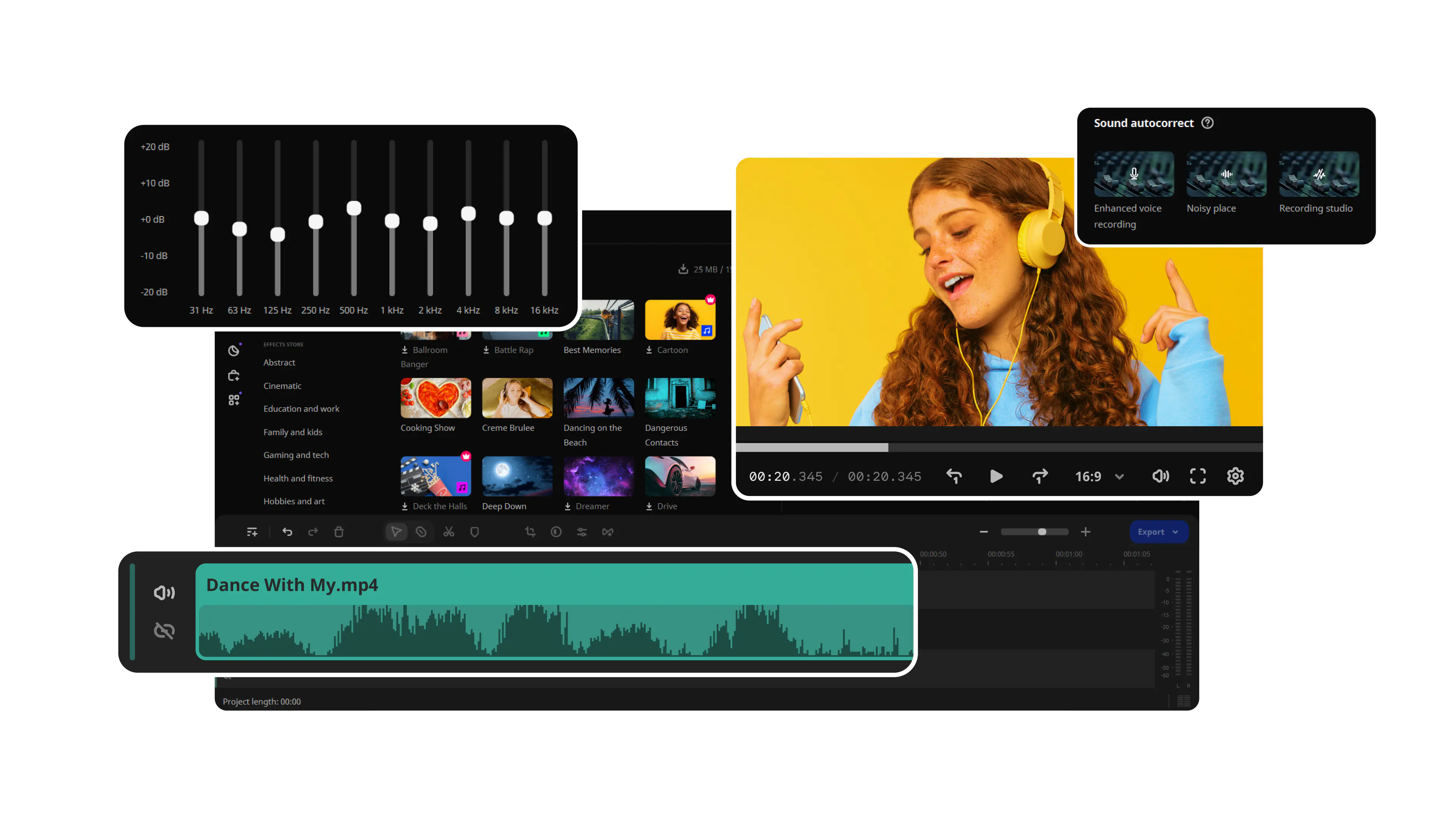
This audio combiner with a free download option supports popular audio formats, including MP3, WAV, FLAC, and more. Apart from merging, you can also edit your files – trim and normalize audio, add creative effects, use an equalizer, or add a compressor to your audio.

There’s no need to be tech-fluent. Just download the audio joiner for Windows or Mac and combine audio files with just a few clicks.

How to combine audio with Movavi Video Editor

Step 1. Download and install the MP3 combiner

Download, install, and launch Movavi Video Editor on your computer. The installation process is quick and straightforward – just follow the on-screen prompts and the app will be ready to use in minutes. Movavi is available for both Windows and macOS, so make sure to download the right version for your system.
Step 2. Import your files

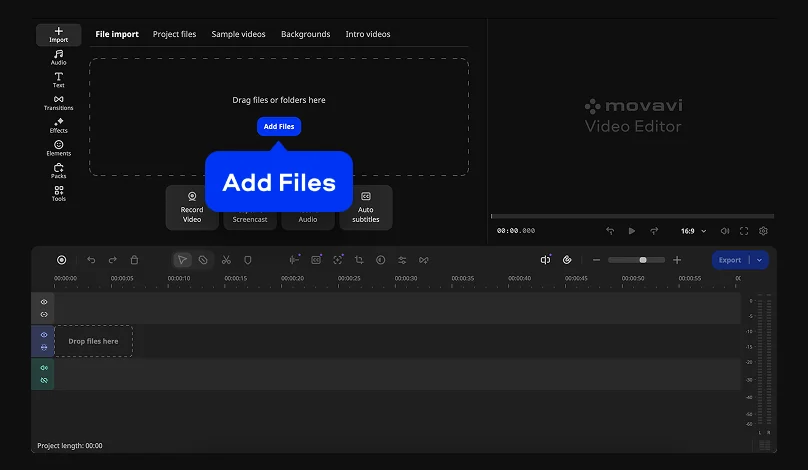
Once the app is open, click Add Files or drag and drop your audio files directly into the media bin. You can import songs in MP3, WAV, and most other common audio formats. From there, drag your tracks onto the timeline at the bottom of the screen and arrange them in the order you want them to play. To place them back-to-back, simply snap each clip to the end of the previous one – this ensures there are no unintended gaps or silences between them.

Step 3. Edit (optional)

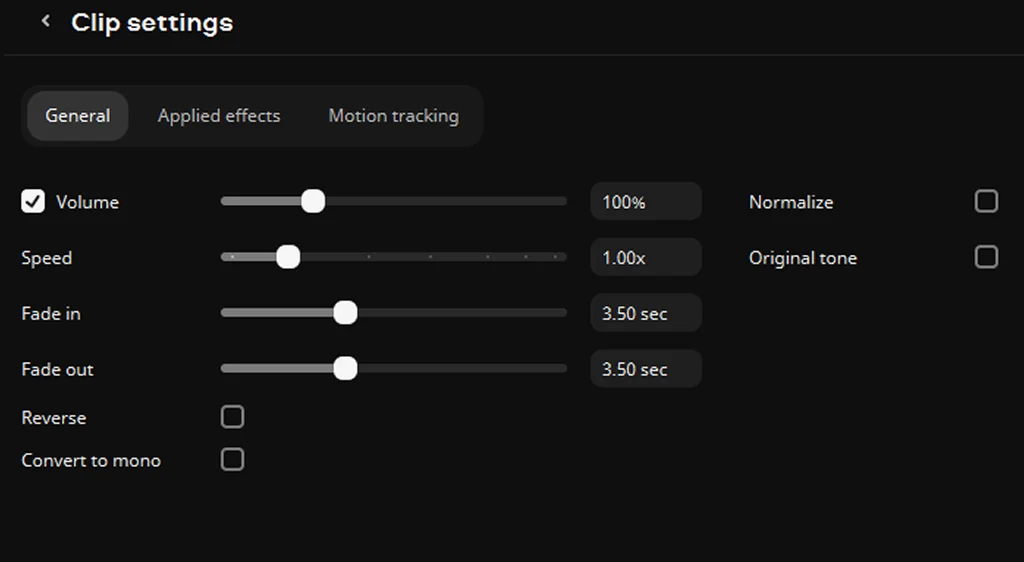
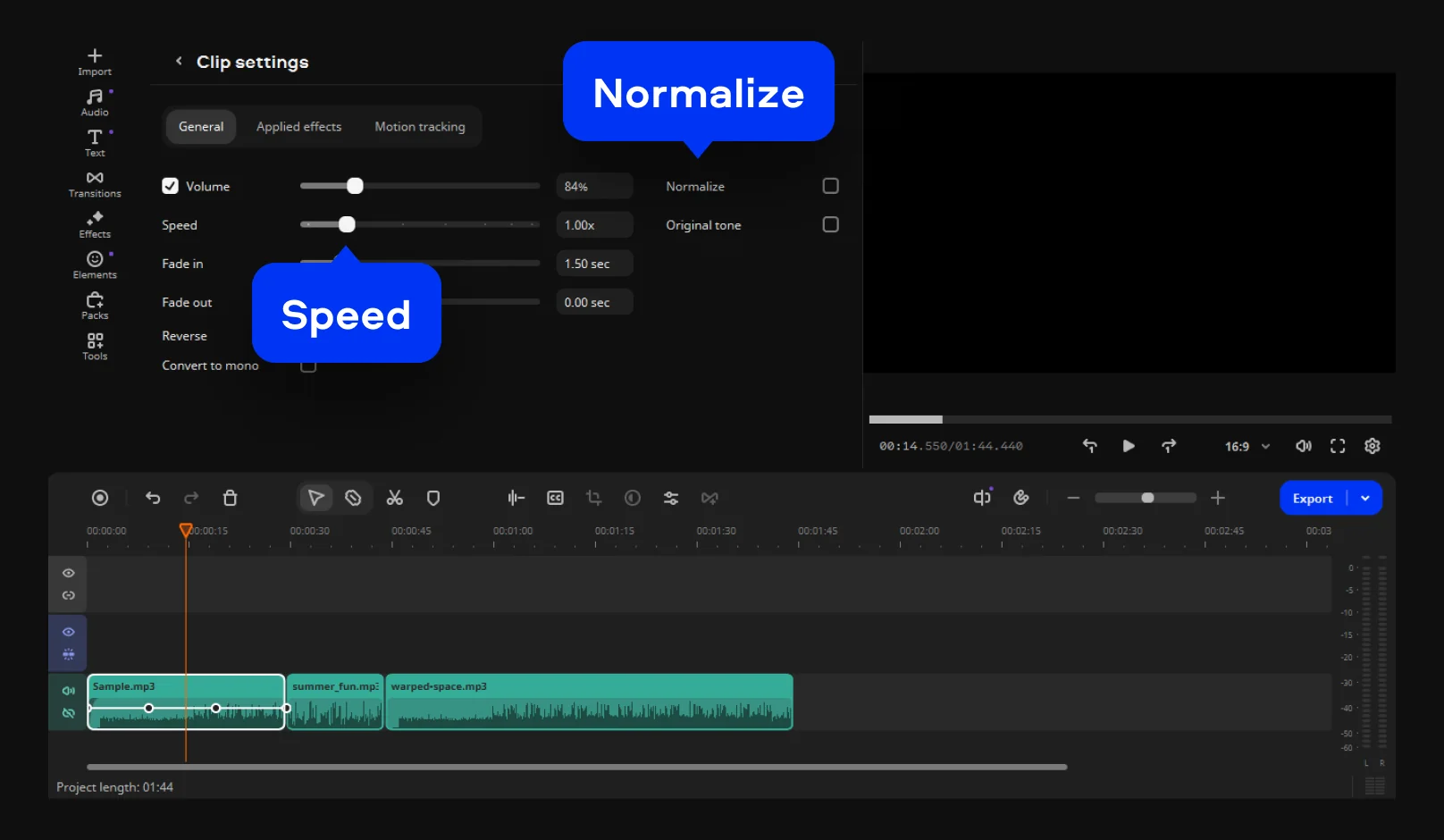
Double-click any audio clip on the timeline to open its settings panel. Here you can:

  • Adjust the volume to balance levels between tracks
  • Change the playback speed of a clip
  • Enable the Normalize option to even out volume differences across files
  • Add Fade in and Fade out effects for smooth transitions between clips

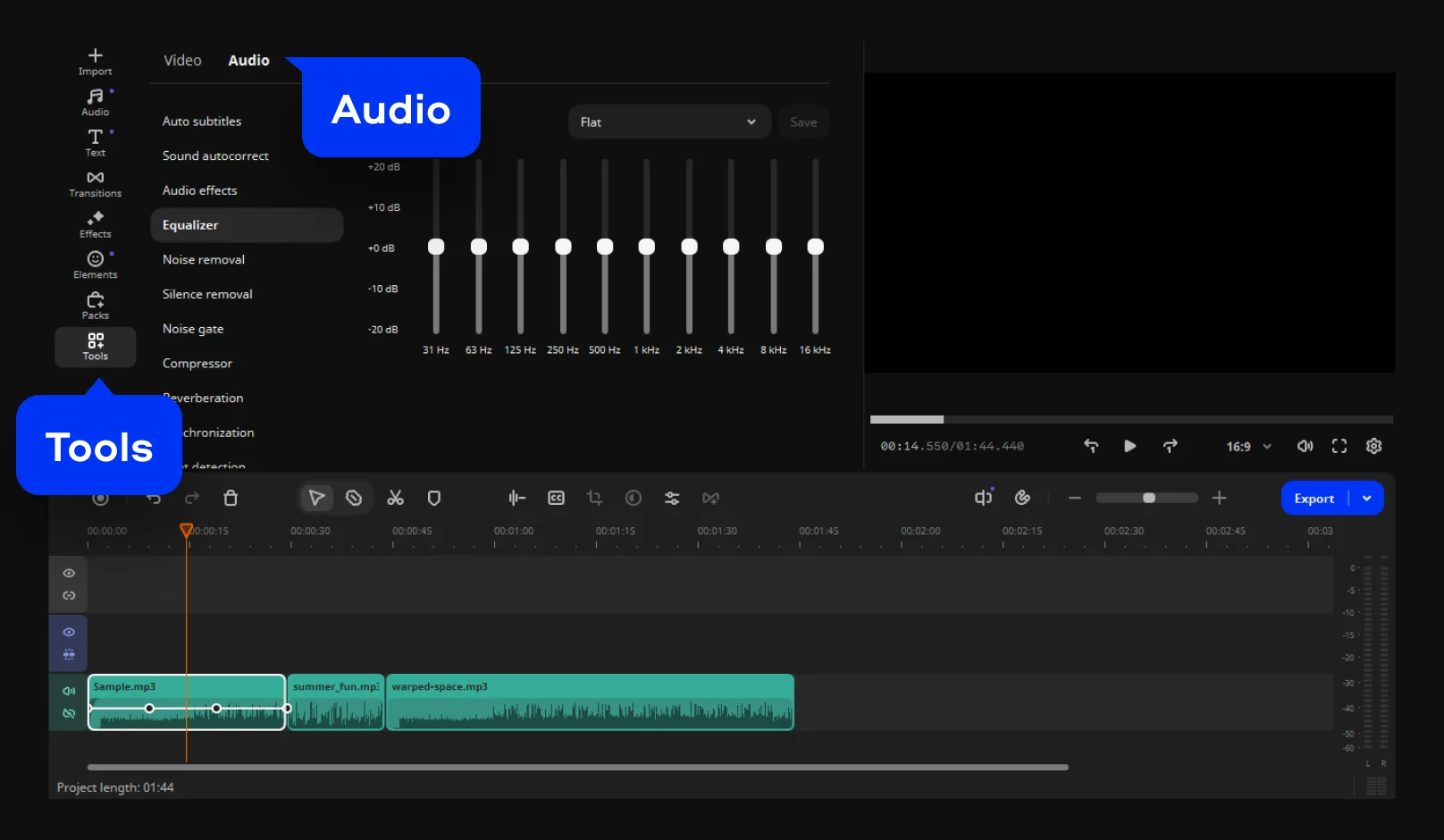
For more control, head to Tools > Audio in the top menu. This opens a wider set of audio tools, including:

  • Equalizer – adjust bass, midrange, and treble frequencies to shape the overall sound
  • Sound autocorrect – let Movavi automatically improve audio quality with a single click
  • Audio effects – apply creative effects to give your audio a unique character

Step 4. Export the result

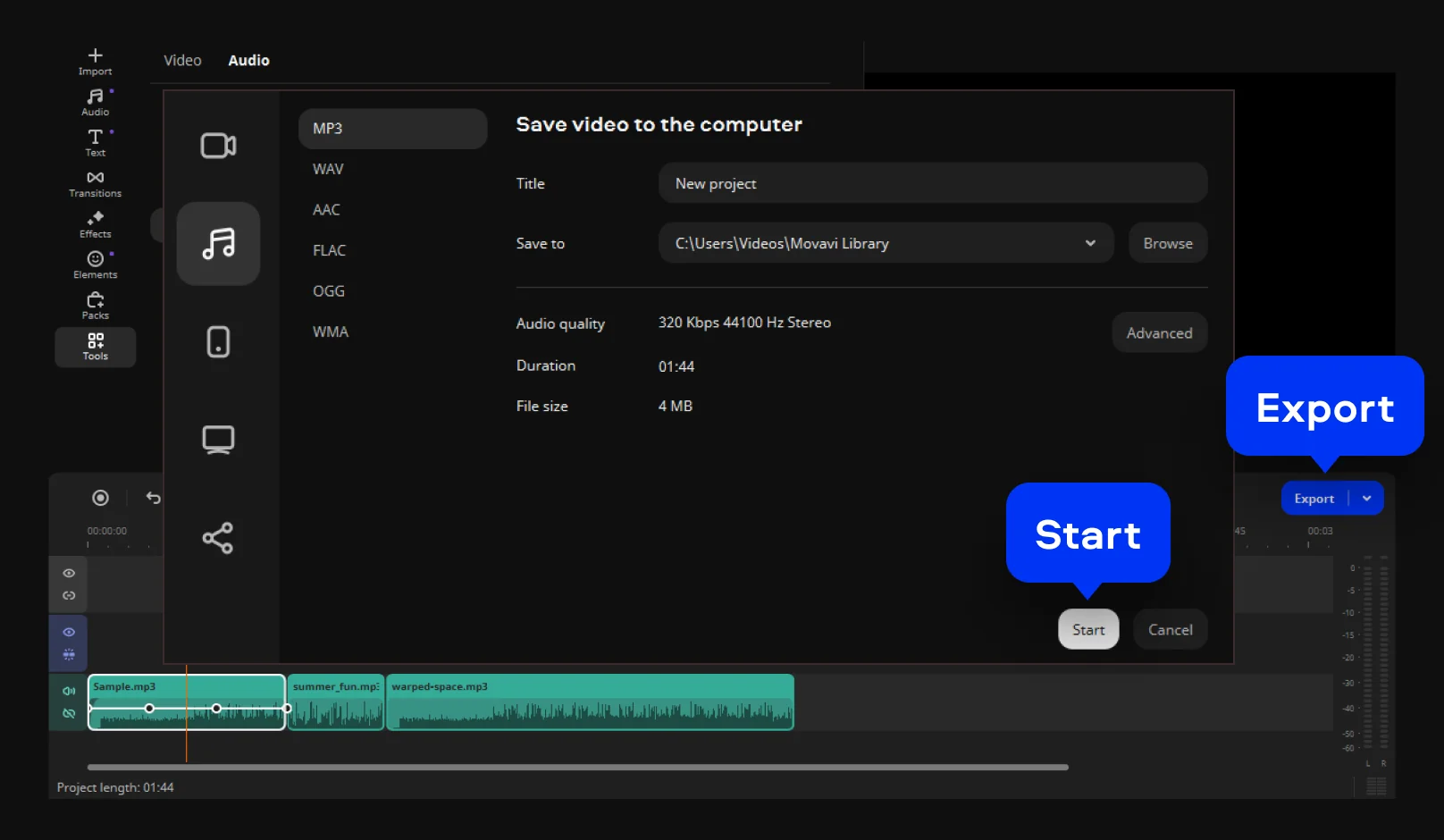
When you're happy with how everything sounds, click the Export button in the lower right corner of the screen. Select your preferred output format – MP3 is the most universal choice for audio – then pick a destination folder for the file. Hit Start and Movavi will process and combine all your audio clips into a single file, ready to use or share.

Why choose Movavi

We’re the #1 choice for millions of people from all around the world. Join our thriving community and create stunning content with incredible ease.

70M+

users

190+

countries

15+

updates per year

10,000+

effects to choose from

Frequently asked questions

Can I merge two audios together?

Yes, you can merge two audio files with a variety of tools, including dedicated audio editors and video editing software like Movavi Video Editor. The general process involves importing both files into your editing program, placing them on the timeline either side by side or overlapping, and exporting the result as a single audio file. Most tools also let you adjust volume levels and add fade effects to make the transition between tracks feel natural.

How to use an audio joiner?

An audio joiner is any tool that lets you combine multiple audio files into one. The typical workflow is the same across most software: import your audio files, arrange them in the order you want, make any edits (trimming, volume adjustments, transitions), and then export. Tools like Movavi Video Editor, Audacity, or even online audio joiners can handle this.

How do you join audio?

Joining audio generally follows these steps regardless of which tool you use:

  1. Choose your software.
  2. Import your files.
  3. Arrange them on the timeline.
  4. Edit as needed – trim clips, balance volumes, or add crossfades between tracks.
  5. Export – save the result as a single audio file in your preferred format (MP3, WAV, AAC, etc.).

The whole process can take just a few minutes once you're familiar with your chosen tool.

How to merge 3 MP3 files into one?

Merging three MP3s into a single file works the same way as merging two — most audio and video editing tools handle any number of files without issue. Import all three tracks into your software of choice, then arrange them consecutively on the timeline. Once you're satisfied with the order and any edits you've made, export the project as a single MP3. The output will play all three tracks back-to-back as one continuous file.

Movavi Video Editor
Create awesome videos easily

*The free version of Movavi Video Editor may have the following restrictions depending on the build: watermark on exported clips, 60-second video or 1/2 audio length limit, and/or some advanced features unavailable when exporting videos.

Join us for discounts, editing tips, and content ideas

1.5M+ users already subscribed to our newsletter

By signing up, I agree to receive marketing emails from Movavi and agree to Movavi's Privacy Policy.